There are many reasons you might need to migrate your website to a new host. Maybe you found a better price, need more reliable service, or want better customer support. You could also be looking for added features or more control over your website. Whatever the reason, web hosting migration is the best way to transfer your website from one hosting provider to another without facing problems like downtime or data loss.
This website migration guide will walk you through everything you need to know for a smooth and successful migration. We’ll cover how to transfer your website to a new host, step-by-step, ensuring that your website will be up and running as quickly as possible.
Why Should You Migrate Your Website?
There are several good reasons to do a web hosting migration to a new host:
- Better Performance: Your current hosting provider may not be offering the performance you need. A new host may offer faster loading speeds and better uptime.
- Enhanced Features: Some web hosts offer features like free SSL certificates, enhanced security, or easy website building tools.
- Better Customer Support: Maybe you’ve had issues with slow or unhelpful customer support. Switching to a host with better service can make a big difference.
- Better Prices: Sometimes, you can find a more affordable hosting plan with better features by switching providers.
If you want to migrate your website to another hosting provider, this guide will explain how to do it smoothly, without losing any data or experiencing downtime.

Factors to Consider When Selecting a Web Hosting Provider
Before you start the web hosting migration, it’s essential to choose a web hosting provider that suits your needs. Here are some things to consider when choosing a web hosting migration:
- Performance and Uptime: You need a host with good performance and a solid uptime guarantee. Your website should be accessible to visitors at all times. Look for a host that guarantees 99.9% uptime or higher.
- Security: Make sure the hosting provider you choose offers strong security measures, such as regular backups, SSL certificates, and protection against hackers.
- Customer Support: Having reliable customer support is critical. Ensure that the new host offers 24/7 support with easy access to help through live chat, phone, or email.
- Pricing: Always compare the price, both initially and for renewals. You don’t want any surprises when it comes time to renew your hosting plan.
- Hosting Features: Consider the features that come with the hosting plan. For example, does the host offer easy installation of WordPress, good website speed, and a user-friendly control panel?
How to Align Your Needs with the Right Hosting Plan
Your hosting needs depend on what type of website you have. For example:
- Personal or Hobby Websites: A basic shared hosting plan might be enough.
- Business Websites: If you run a growing business, a VPS (Virtual Private Server) or dedicated server might be better. These options offer more power and flexibility.
- WordPress Websites: If you’re using WordPress, look for WordPress hosting that offers easy setup and optimizations for WordPress sites.
Once you’ve figured out what type of hosting plan works best for you, you’re ready to start the migration process.

The Steps to Web Hosting Migration
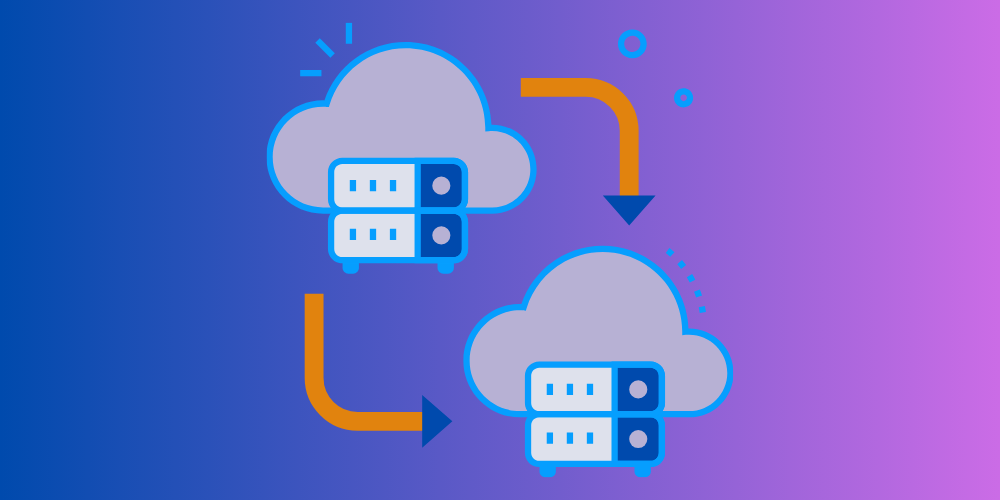
Web hosting migration can seem like a complex process, but it’s really just a series of steps. Let’s break it down:
1. Choose Your New Hosting Provider
First, research and choose the best web hosting provider for your needs. Make sure they offer the performance, support, and features you need for your website. Like Hostinger
2. Backup Your Website
Before doing anything, back up your website. This is a crucial step in any website migration guide. You need to ensure that you have a safe copy of all your website files, databases, and content.
- Use an FTP client like FileZilla to download all your website files.
- If your website uses a database (like WordPress), export it from your old host.
3. Set Up Your New Hosting Account
Once you’ve chosen your new web hosting provider, create an account with them. After that, set up your hosting plan by following the instructions from your new host.
4. Transfer Your Files
After setting up your new hosting account, use an FTP client to upload your website files to the new host. This is how you “transfer your website to a new host” and ensure all your content is moved safely.
5. Migrate Your Database
If your website uses a database (such as a WordPress site), you need to migrate it to the new host:
- Export your database from the old host.
- Import it into your new host’s control panel or database manager.

6. Update Your DNS Settings
Once your website files and databases are on the new host, update your DNS settings to point to the new server. This step is crucial in the web hosting migration process. Your DNS settings tell the world where your website is hosted.
If you don’t know how to do this, you can reach out to your new host’s customer support or refer to their documentation.
7. Test Your Website
Before fully switching over, test your website on the new host. This helps ensure that everything is working as expected. Check if all the pages load correctly, the database works, and the links are intact.
8. Complete the Migration and Monitor Your Website
Once you’ve tested everything and are confident that your website is functioning properly, complete the DNS changes and finalize the transfer. Keep monitoring your website closely over the next few days to ensure everything continues to run smoothly.
9. Cancel Your Old Hosting Account
After you’ve confirmed that your website is up and running on the new host, you can cancel your old hosting account. Be sure to do this after all your data has been transferred and you are confident everything functions correctly.

Common Challenges and How to Overcome Them

Here are some challenges you might face during web hosting migration and how to overcome them:
- Downtime: To avoid downtime during migration, consider scheduling the migration during off-peak hours and use a hosting provider that offers automated migration tools to help speed up the process.
- Data Loss: Always back up your website files and database before starting the migration process. Use reliable tools and storage to ensure you don’t lose any data.
- DNS Propagation: Changing your DNS settings can take up to 48 hours to propagate. During this time, some users may still be directed to your old host. To minimize confusion, let your users know about the migration beforehand.
Hostinger Migration Request
If you’re migrating to Hostinger, you may want to take advantage of their Hostinger migration request feature. Hostinger offers a free migration service for certain hosting plans. Their support team can help you move your website quickly and safely without losing any data.
Conclusion
Web hosting migration to a new host for your website doesn’t have to be a stressful process. With proper planning and by following this website migration guide, you can transfer your website to a new host with minimal downtime and no data loss.
Make sure to choose the right web hosting provider for your needs, back up your website, and carefully follow the steps. Whether you’re migrating for better performance, lower prices, or more features, web hosting migration can be an easy process with the right preparation.
If you’re ready to migrate your website to another hosting provider, take these steps seriously, test everything, and monitor your website after the move. With the right support, you’ll be on your way to a better hosting experience in no time!